Silverstack Link
Our free suite joins the power of
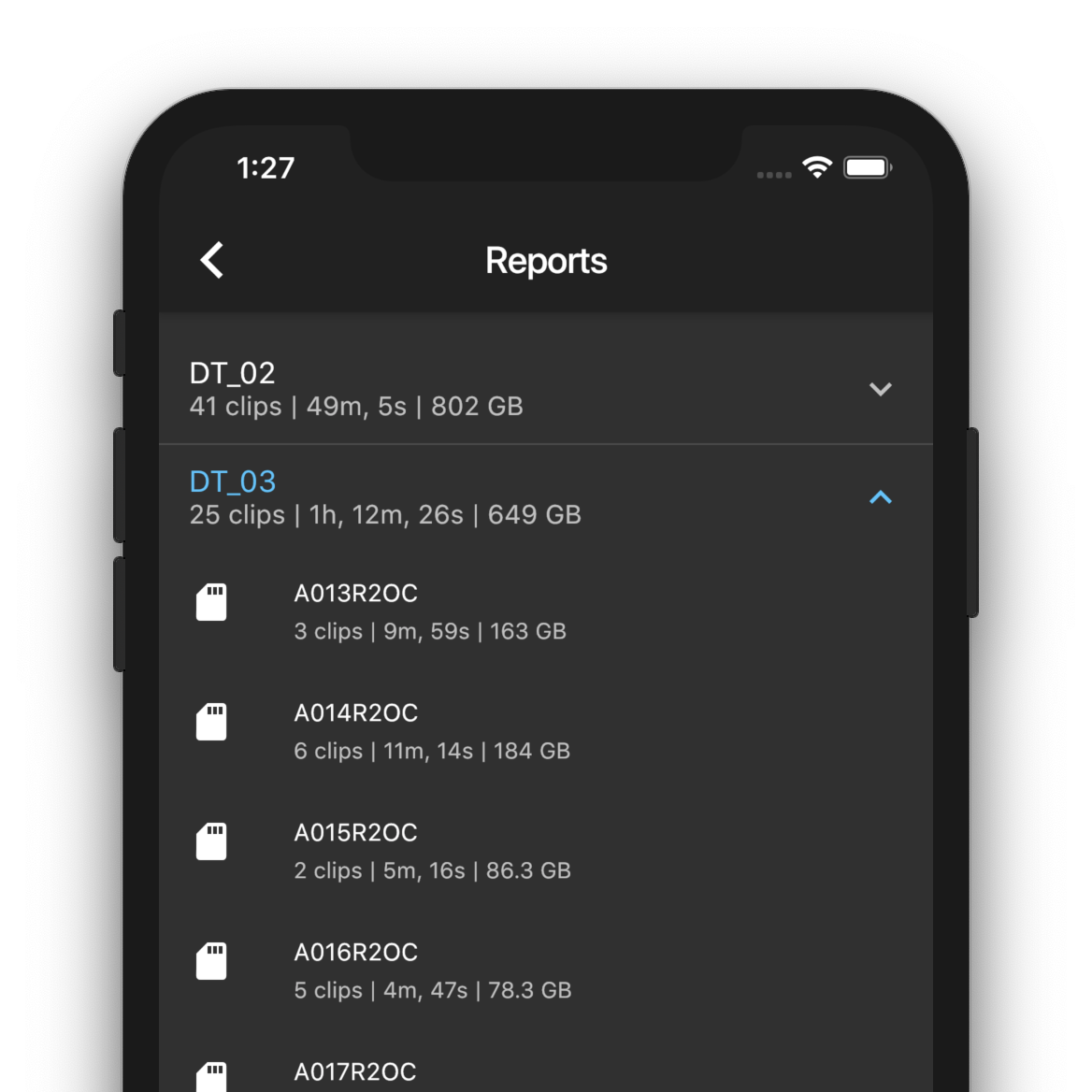
Our apps can display all your jobs from Silverstack, as well as close the circle for shooting day reports.
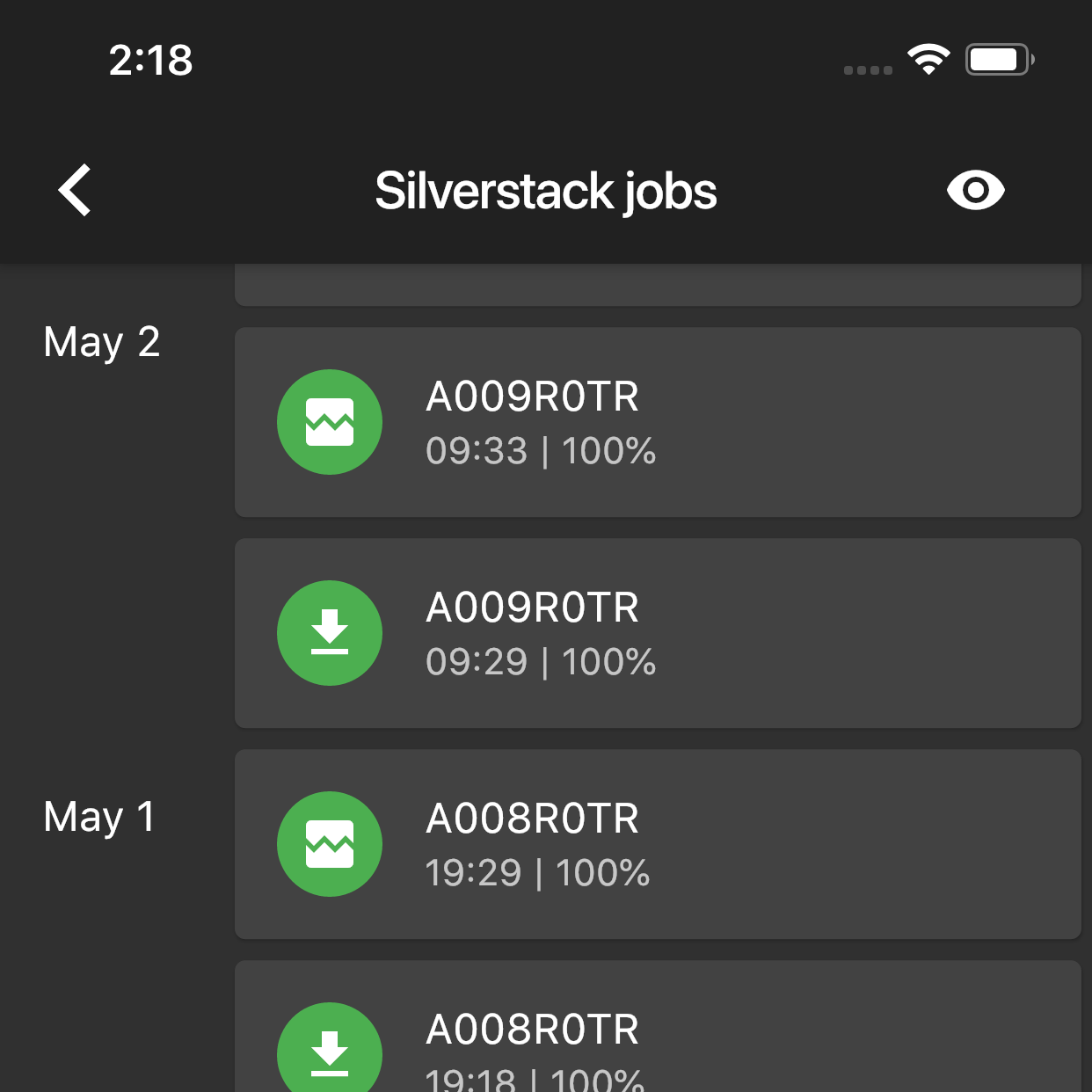
The o/DAILIES/MANAGER app syncs your most recent
This allows you to have a live, online representation of all your clips with metadata, a shooting day report function as well as a list of your transcoding and offload jobs.
See Reports for what the shooting day report shows and how its totals are calculated.
Creating the Link
- Get our o/DAILIES/MANAGER for macOS
- Start Silverstack
- Start the app and login
- Free o/DAILIES projects will be created for Silverstack projects used in the last 24h
- All projects from now on are automatically synced to our database
Enjoy Silverstack progress notification on jobs, shooting day reports and more in our iOS, macOS and Android app.
Attention
Projects created in o/DAILIES cannot be linked to Silverstack afterwards. Please create your project in Silverstack first to make sure they are properly linked.
If you need to link an existing o/DAILIES project with Silverstack, click the chat icon in the bottom right corner to contact us.
Association vs machine lock (important)
Two different things are stored on your o/DAILIES project:
| Concept | What it means |
|---|---|
| Silverstack project association | Your o/DAILIES project is tied to a specific Silverstack library (the Project ID shown under Settings → Metadata → Source). While this is set, o/DAILIES/MANAGER is designed to keep metadata in sync with that library whenever Silverstack is in use on the linked machine. |
| Machine lock | Only one Mac at a time may run live Silverstack → o/DAILIES sync for that project. The locked to machine value identifies which computer currently holds that lock. |
The Migrate Silverstack button clears only the machine lock so you can move the same Silverstack library to another computer (see Migration to a new machine below). It does not remove the Silverstack project association. The Project ID therefore stays visible; that is expected.
Automatic re-linking on the same computer
After you confirm Migrate Silverstack in o/DAILIES/MANAGER, the macOS app will assign the machine lock back to the Mac you are on as soon as it again sees the matching Silverstack project open locally (same Project ID). That is intentional: it lets a new machine take over after a real migration, and it brings the lock back if you only meant to hand off sync briefly.
Releasing the lock without that happening: Quit MANAGER on the Mac that currently holds the lock, then sign in at odailies.com in a browser, open Settings → Metadata → Source for the project, and run Migrate Silverstack there. The web client updates the database but does not run the desktop Silverstack sync pipeline, so it will not perform the automatic re-lock itself. (If MANAGER is still running on that Mac, it can still reclaim the lock when it syncs—fully quit MANAGER first.)
Practical consequence: On the computer where Silverstack still opens that library, you cannot “turn off” live Silverstack metadata sync by using Migrate in MANAGER alone—sync will resume when MANAGER and Silverstack run again.
Using ALE instead of live Silverstack sync
Uploading an ALE file does not remove the Silverstack association and does not stop Silverstack-driven sync while the project remains linked.
To switch a project to ALE-only metadata (no live import from Silverstack), the Silverstack project association must be cleared on our side. That is not exposed as a self-service control in the app today—use the in-app chat or support and send your o/DAILIES project ID (from the web app URL or project settings). Support can also restore the link later if you change your mind.
Migration to a New Machine
When moving your Silverstack project to a new machine, follow these steps in order:
- Make sure o/DAILIES/MANAGER is not open on the new machine
- Export Silverstack Library Archive (.psla) from Silverstack
- Close Silverstack on the old machine
- Import .psla on the new machine
- On the old machine, quit o/DAILIES/MANAGER, then sign in at odailies.com in a browser, open
Settings -> Metadata -> Source -> Migrate Silverstack, and click OK. That clears the machine lock so the new Mac can claim it—not the Silverstack Project ID shown in settings. Using the web app for this step avoids the macOS MANAGER immediately re-locking while Silverstack is still open on the old machine. If you use MANAGER on the old Mac instead, confirm Migrate, then quit MANAGER again right away before it can reclaim the lock. - Start o/DAILIES/MANAGER on the new machine
Step 5 is only for moving the live sync to another computer. If MANAGER stays running on the old Mac while you only clear the lock from there, it will typically re-lock to that Mac again the next time it sees your Silverstack project (see Automatic re-linking above).
Upgrade to full platform
To fully use the platform as a dailies service - to add video files - check out the chapter "Upgrade your project".