Player
The player is the same on every platform: the crew apps, the web version, and o/DAILIES/MANAGER all show the same controls and react to the same shortcuts. This page walks through what each control does, what the timeline shows, and how skipping behaves.
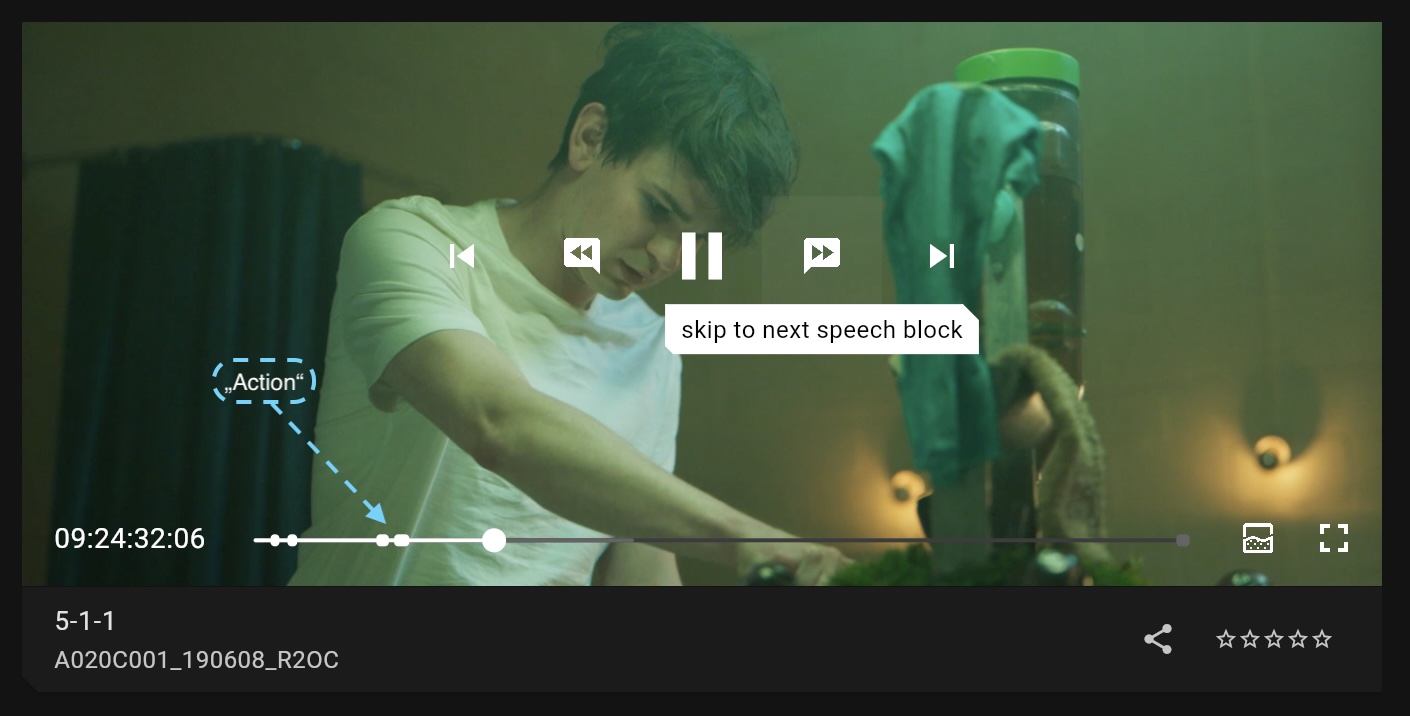
The controls
Tap or move the mouse over the video to show the controls. They fade out again after a moment while the clip plays.
In the centre
| Control | What it does |
|---|---|
| Previous clip, next clip | Move to the neighbouring clip in the bin, without leaving the player. |
| Skip back, skip forward | Jump through the clip. What they jump to depends on whether the clip is playing, see Skipping. |
| Play, pause | Start or pause playback. |
Along the bottom
From left to right:
| Control | What it does |
|---|---|
| Timecode | The current position as a timecode, counting from the clip's own start timecode. Click it to show elapsed time and duration instead. |
| Timeline | The progress bar. Click or drag anywhere to scrub. The thicker stretches are the speech blocks. |
| Waveform | Shown only when the clip was uploaded with a LOG version. Switches between the graded picture and the LOG picture with a video waveform scope over it, see The waveform view. |
| Fullscreen | Enlarge the player to the whole window. |
A clip without a LOG version has no waveform button, so fullscreen follows the timeline directly.
The timeline
The thin line is the whole clip; the filled part is what has played so far. The thicker stretches are the speech blocks that video processing found: places where someone is speaking. They are not a volume waveform. A loud noise does not thicken the line, and quiet dialogue does.
The speech blocks are what the skip buttons jump between, so the timeline shows you where the next skip will land before you press it.
The waveform view
Despite the name, the waveform view has nothing to do with audio. It shows the ungraded LOG picture with a luminance waveform scope laid over it, the same scope a DIT reads for exposure. Use it to check how the shot was exposed underneath the grade. Playback position and play state carry over when you switch, so you can flip between the two pictures on the same frame. The scope is rendered during video processing when a LOG file was uploaded alongside the graded one.
Skipping
The skip buttons, and the shortcuts bound to them, adapt to what you are doing:
| Situation | Skip back or forward does |
|---|---|
| Playing, and there is a speech block in that direction | Jumps to the start of the previous or next speech block. |
| Playing, but no speech block lies in that direction (or the clip has none) | Jumps 10 seconds. |
| Paused | Steps one frame at the clip's frame rate. |
The button's icon and its tooltip change to show which of the three you will get, so if you want a fixed 10-second jump, watch for the 10-second icon: it appears once you are past the last speech block, or on clips that were uploaded without speech detection. To move by a fixed amount within a dialogue, pause and scrub the timeline, or pause and step through frames.
Clips whose slate was detected start playing at their automatic in-point, the first speech block after the slate, rather than at the head of the file. Scrub back to see the slate.
Keyboard shortcuts
On the web and on macOS:
| Keys | Action |
|---|---|
Space or K |
Play or pause |
← or J |
Skip back |
→ or L |
Skip forward |
F |
Toggle fullscreen |
Esc |
Leave fullscreen |
↑ / ↓ |
Previous or next clip |
⌘ ↑ / ⌘ ↓ |
Previous or next bin |
⌘ F |
Open search |
Skipping with the keyboard follows the same three modes as the buttons, so ← and → step frames while the clip is paused and jump speech blocks while it plays.
Multicam
When several cameras covered the same take, the player shows all of them at once and one set of controls drives them together. See Multicam.